
The Dashboard
A tour of the Muro dashboard: KPI cards, the visitors chart, filters, time ranges, and the click-to-filter trick that ties them all together.
The dashboard is where you look up the numbers behind an insight, dig into a specific page or referrer, or just check on traffic in real time. Most of the data is recomputed on the fly, so what you see is always current.
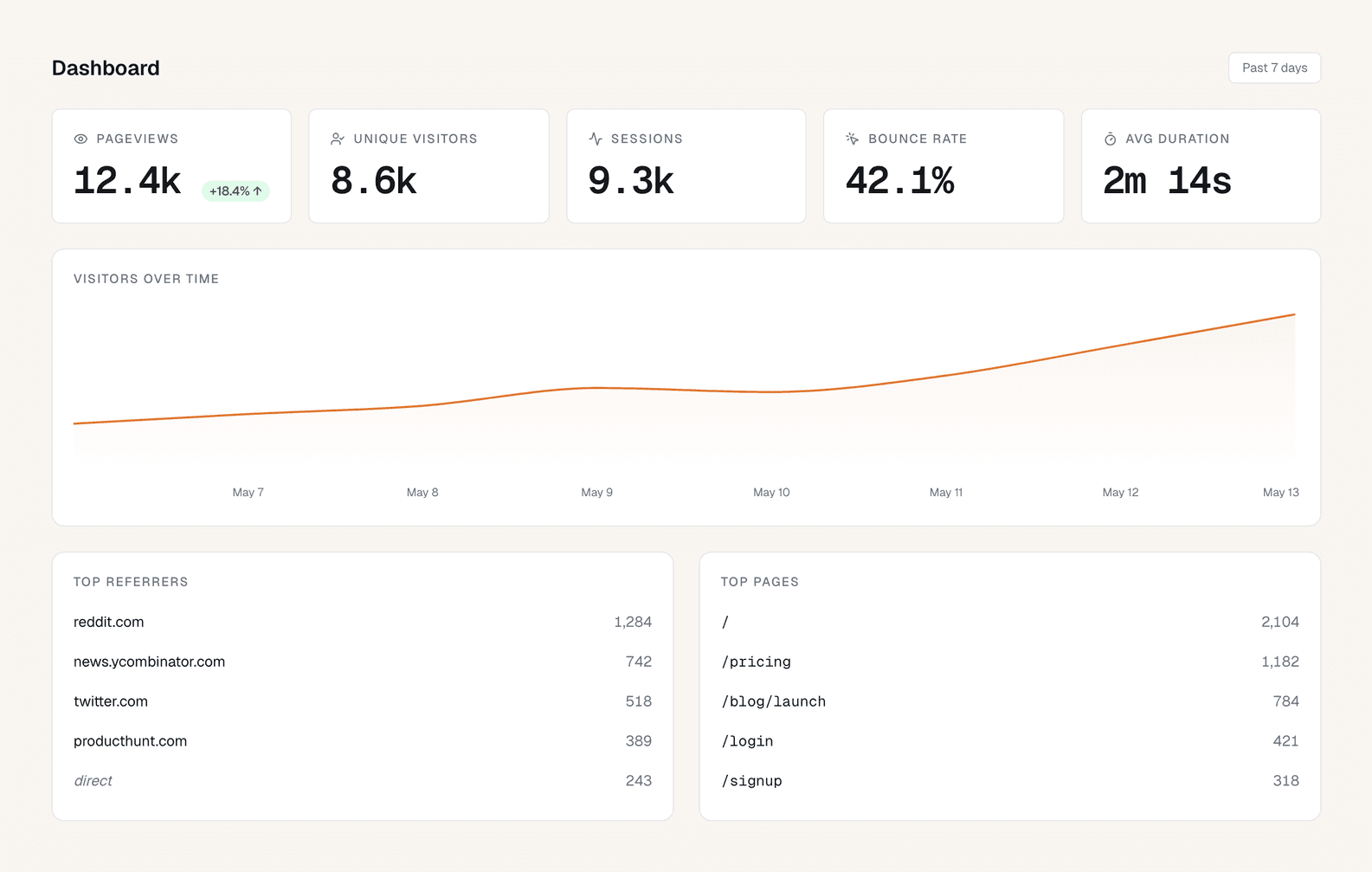
What's on the page
When you open a project, you'll see five things stacked on the page.
KPI cards (top row)
Five numbers that summarize the time range you're looking at:
- Pageviews. Every page load counts. Includes SPA navigation.
- Unique Visitors. Distinct visitor IDs in the period.
- Sessions. A session ends after 30 minutes of inactivity or when the tab closes.
- Bounce Rate. Percentage of sessions with exactly one pageview.
- Avg Duration. Average time between the first and last event in a session. Single-event sessions are excluded so this number stays honest.
The Pageviews card also shows a percentage change compared to the previous period of the same length. Up is green, down is red.
Visitors chart
A time-series chart of visitors across the range. The bucket size adjusts automatically: minutes for Live mode, hours for "today" or "past 24 hours," days for longer ranges.
Breakdown panels
Below the chart, you'll see five panels:
- Top Referrers. Where your traffic came from.
directis grouped separately. - Top Pages. Most-visited URLs, with bounce rate and average time on page.
- UTM Breakdown. Visitors grouped by
utm_source,utm_medium, andutm_campaign. - Tech Breakdown. Browsers, operating systems, devices, and screen sizes.
- Location Breakdown. Country, region, and city, each on its own tab.
Each panel has a "View all" option that opens a modal with the full list. The default view shows the top 10.
Click any row to filter
This is the most useful feature in the dashboard, and it's not obvious until you try it.
Click any row in any panel, and the whole dashboard filters down to that value. Click news.ycombinator.com in Top Referrers, and every panel and the chart now show only visitors who came from Hacker News.
Filters stack. Click news.ycombinator.com, then click /pricing in Top Pages, and you've now isolated Hacker News visitors who saw your pricing page.
To remove a filter, click the matching pill at the top of the page or click the same row again. Clear all resets everything.
The active filters live in the URL, so you can bookmark a filtered view or send the link to a teammate.
Picking a time range
The time picker is in the top right of the dashboard. Click it to open a panel with presets and a custom range.
The presets are grouped:
- Now. Live (last 5 minutes, refreshes every 30 seconds), Past Hour.
- Days. Today, Yesterday.
- Months. Month to Date, Last Month.
- Sliding windows. Past 7d, Past 14d, Past 30d, Past Quarter (90d), Past Half Year (182d), Past Year (365d).
- All time. From the day you created the project to now.
- Custom. Pick any start and end date, with time-of-day precision. Both ends use your project's timezone.
The back and forward arrows next to the picker step the window by one period (one day for "Today," seven days for "Past 7d," and so on). The back arrow stops when you hit the day you created the project. The forward arrow stops at "now."
Live mode
Setting the range to Live turns the dashboard into a real-time view. It refreshes itself every 30 seconds, so you can watch traffic come in during a launch or right after a deploy.
Useful moments:
- Posting a link on Twitter or Hacker News and watching the spike land.
- Pushing a deploy and watching for a sudden drop in pageviews.
- Showing someone, in real time, that their visit is being captured.
Working with timezones
Every date and time in the dashboard is rendered in your project's timezone, not your browser's. This matters more than it sounds: if your audience is mostly in one timezone and you live in another, you want the day boundaries to line up with theirs, not yours.
You set the timezone when you create the project. You can change it any time in Settings → Project.
A note on accuracy
A few things to know so the numbers don't surprise you:
- Ad blockers will hide some traffic. A small percentage of visitors run blockers that prevent
muro.jsfrom loading. You'll never see those visits. - Bounce rate counts sessions, not pageviews. A session with one page is a bounce, regardless of how long the visitor stayed.
- Average duration excludes single-event sessions. Otherwise every bounce would count as zero seconds and pull the average down to nothing.
- The first event after a deploy may take a few seconds to appear. Muro batches events in 5-second windows on the way to the database.