
Create your first project
Sign up, create a project, install the snippet, and see your first data inside five minutes.
This is the fastest path from "I want to try Muro" to "Muro is collecting data on my site." It takes about five minutes.
1. Sign up
Head to app.muroanalytics.com/signup and create an account with your email and a password.
Screenshot coming: the signup form.
You'll get a verification email within a minute or two. Click the link and you're in.
No credit card needed
Every account starts with a 30-day free trial. We don't ask for payment information until you choose a plan at the end of the trial.
2. Create your project
Right after signup, Muro takes you to a three-step onboarding flow. The first step asks for three things:
Screenshot coming: onboarding step 1, with the Project name, Domain, and Timezone fields.
- Project name. Anything you'll recognize. "My Site" is fine. You can change it later.
- Domain. The site you want to track, like
yourapp.com. Don't includehttps://or trailing slashes. Muro normalizes it for you if you paste a full URL. - Timezone. Used to decide when your daily digest email goes out (every morning at 8 AM, your time). Muro auto-detects your browser's timezone, so you usually don't need to change this.
Click Continue → when you're done.
3. Install the snippet
The second step shows you the tracking snippet, with your project's ID already filled in:
Screenshot coming: onboarding step 2, with the snippet, a Copy button, and a "Waiting for first event…" indicator.
<script async src="https://api.muroanalytics.com/muro.js" data-project-id="YOUR_PROJECT_ID"></script>Click Copy snippet, then paste it into the <head> of your site. If you're not sure where to put it, see Install the tracking snippet for details on every common stack.
While you're working on it, Muro polls in the background. The moment your site sends an event, the indicator switches to "Data received!" and you'll auto-advance to the final step.
Screenshot coming: the "Data received!" confirmation state.
If you want to install the snippet later (for example, you're handing it to a developer), click "I'll do this later →" to skip ahead. You can always come back to Settings → Project → Tracking script to copy it again.
4. You're in
That's it. The last screen confirms you're set up.
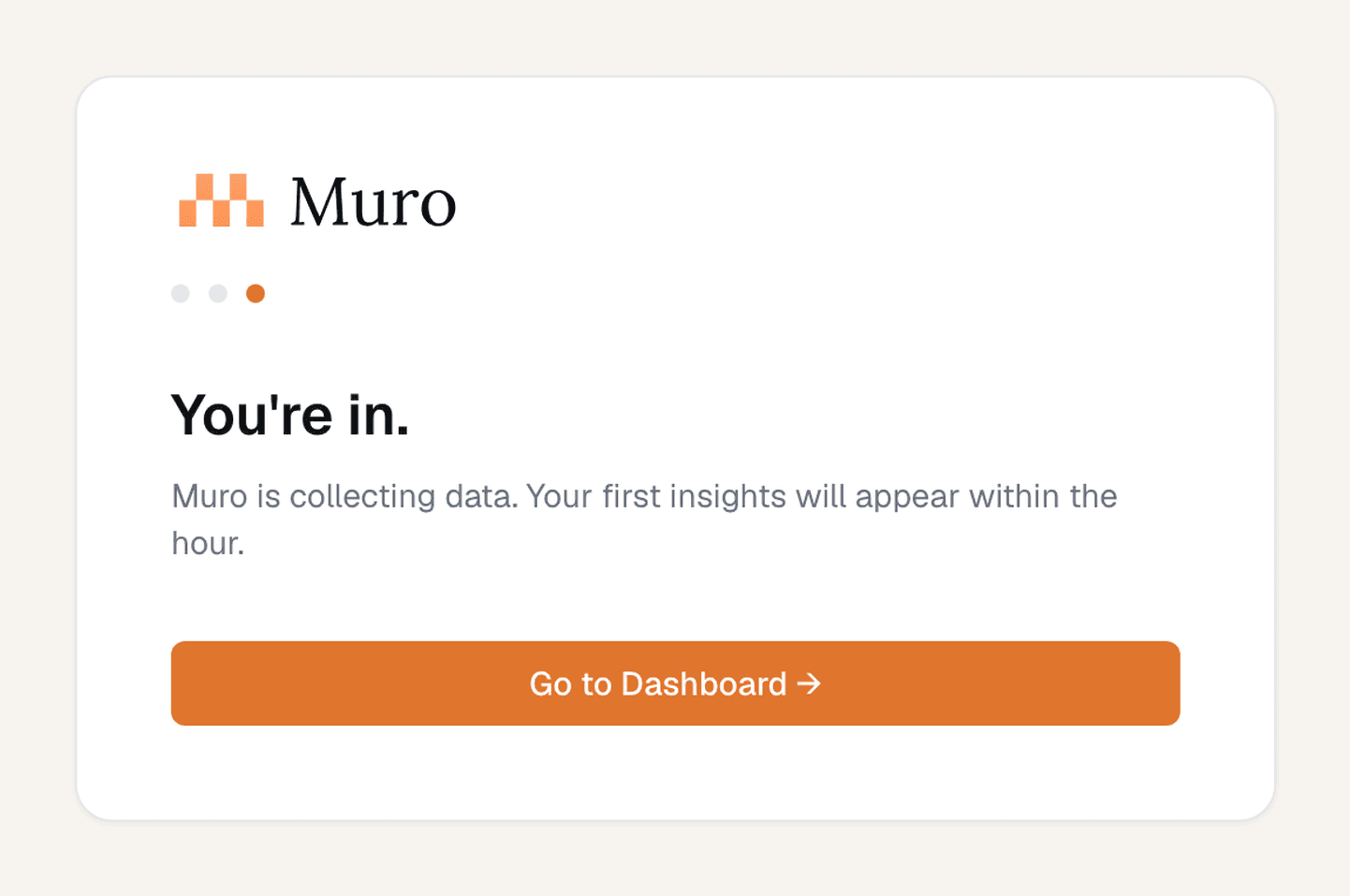
Click Go to Dashboard → to start exploring.
What happens next
- Live data shows up immediately. Set your dashboard time range to Live to see visits as they happen.
- The first insights land within the hour. Muro evaluates your data every hour and writes plain-English observations to your Insights feed. You won't see anything in the first few minutes, but by the end of the hour you'll have your first ones.
- Your daily digest arrives tomorrow morning. At 8 AM in your project's timezone, you'll get a short email with yesterday's summary and any noteworthy insights from the past day.
Adding more projects later
You're not limited to one project. Once you're inside the dashboard:
- Use the project switcher in the top navigation to jump between projects.
- Click Add project on the Overview page, or open Settings → New project, to start the same three-step flow again.
Every project gets its own dashboard, insights, and digest schedule. Billing is shared across all of them.